Router IP Finder
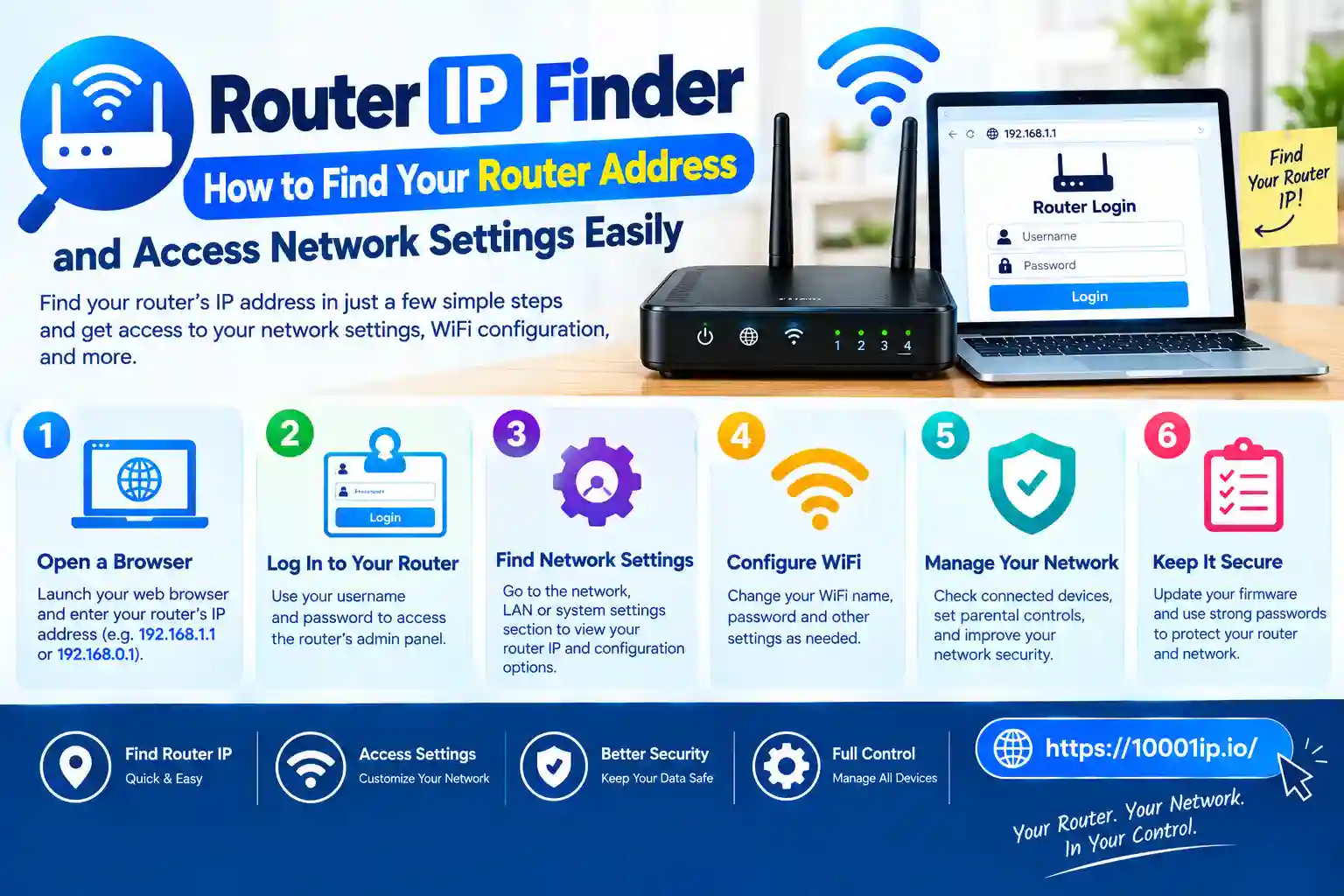
Router IP Finder: How to Find Your Router Address and Access Network Settings Easily
Have you ever tried to change the Wi-Fi password or resolve a slow internet connection and improve your network security but were not able to find the router settings page? The journey often begins with a single, tiny piece of information: the IP address of your router. An IP Finder for Router helps you instantly see how your router is addressing your devices and lets you access its settings page.
Regardless of whether you use Windows, macOS, Linux, Android or iPhone, knowing how to find the router IP is the first step toward controlling your home network.
This guide explains what the router IP address is, how to locate it on various devices, how to log in and access settings, common default router IP addresses and solutions when the router IP address does not work.
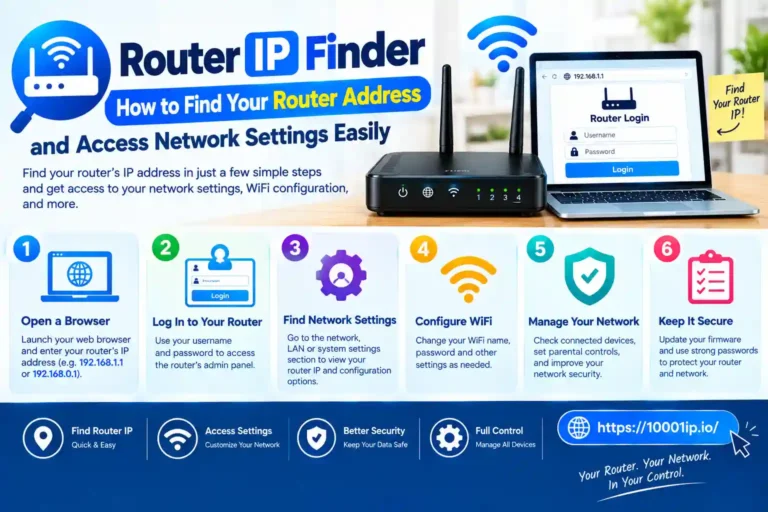
What Is Router IP Finder and Why You Need It?
A Router IP finder is a tool or method for finding your router’s local or default gateway address. From this address, your PC or smartphone can connect to the router and open its admin page.
The router acts as the connection point between your home network and the internet. All devices connected to your Wi-Fi network—whether laptops, smartphones, smart TVs or gaming consoles transmit over the router.
A common setup of a home network may look like the following;
- Router IP address: 192.168.1.1
- Laptop IP address: 192.168.1.20
- Smartphone IP address: 192.168.1.35
The router is responsible for transferring data between these devices and connecting them to the internet.
Useful When You Need to Find Your Router IP Address:
- Change your wireless SSID (name) or clean up Wi-Fi password
- Improve network security
- Configure parental controls
- Enable port forwarding
- Update router settings
- Check connected devices
- Troubleshoot internet problems
Without knowing the router’s IP address, you cannot log in to your router’s management interface.
Private IP vs Public IP: Understanding Router IP Address
Many users confuse their router IP address with a public IP address. While both are related to networking, they serve a different purpose. This is the address used on your local home network. Common examples include:
- 192.168.1.1
- 192.168.0.1
- 10.0.0.1
These IP ranges are not accessible over the internet because they are reserved for private use. On the flip side, a public IP address is one that your internet service provider assigns to you. It gives you access to the whole internet to sites and services over the web.
For example:
Private router IP:
- 192.168.1.1
Used for:
- Accessing router settings
- Managing home network devices
Public IP:
- 203.xxx.xxx.xxx
Used for:
- Identifying your connection online
If you look for the router IP finder, it means that you probably need a private IP address not a public one.
How to Find Router IP Address on Windows
For Windows users, your router IP address is just a few seconds away in Command Prompt.
Follow these steps:
- Press Windows + R.
Type:
- cmd
- Press Enter.
Enter:
- ipconfig
Search for the space which is connected to you at the moment.
Find:
- Default Gateway
You may see an address like this:
- Default Gateway…..: 192.168.1.1
This is good to know because it is your router’s IP address.
A faster method is:
- ipconfig | findstr /i “Gateway”
This command will instantly display your gateway address.
How to Get Router IP Address on macOS
Likewise, the process for Mac is quite simple for finding the router IP.
Follow these steps:
- Click the Apple menu.
- Open System Settings.
- Select Network.
- Select the active Wi-Fi or the Ethernet connection.
- Open network details.
- Select the TCP/IP section.
You will find:
- Router: 192.168.1.1
Another fast approach is Terminal-wise:
- route -n get default | grep gateway
What you see there is your router’s IP address.
Finding Router IP Address on Linux
Getting Router Address in Linux:
Open Terminal and type:
- ip route
You will see something like:
- default via 192.168.1.1
This is your router’s IP address, the one after “default via”.
In older versions of Linux, the commands may be used as:
- route -n
The modern ip route command works on most modern distributions, though.
Method To Find Router IP Address On iPhone And iPad
Finding your router address is very simple on Apple devices.
Follow these steps:
- Open Settings.
- Tap Wi-Fi.
- Select your connected network.
- Scroll down to Network Information.
Look for:
- Router
Example:
- Router: 192.168.1.1
This value is your Router IP. No extra app is needed on the iPhone.
Get Router IP Address on Android
Manufacturers use different menus on Android devices.
Generally:
- Open Settings.
- Go to Wi-Fi.
- Select your connected network.
- Open advanced network settings.
Look for:
- Gateway
- Router
- Network gateway
The displayed address is your router’s IP. On some earlier versions of Android for a detailed connection report you may need to add network analyzer apps.
How to Open Router Login Page
Once you have found your router’s IP address, accessing the router dashboard is simple.
Open your browser and type:
- http://192.168.1.1
- or your router’s public IP.
Type it in the address bar of your browser, and not just in the Google search box.
Then it will bring up a router login page for the admin credentials.
Router IP Finder: Finding an IP of the Router for Mesh Wi-Fi System
Routers like those from Google Nest WiFi and eero use mobile apps rather than browser-based dashboards.
For these systems:
- About the Google Home app – Manage your Google Nest WiFi
- Eero app manages eero networks
While these systems may be accessible via a gateway address, they typically do not include a login page.
Improving the security of your router post-login
As soon as you have successfully accessed your router settings, enhance its security.
Start by:
- Changing the default administrator password
- Updating router firmware
- Based on WPA3 or WPA2 Wi-Fi encryption
- Disabling unnecessary remote access
- Reviewing connected devices regularly
The future use of default passwords can be easily found online. Leaving them as is creates unnecessary security vulnerabilities.
Conclusion
One of the simplest methods is to use a router IP finder which helps you find the address that allows you to access your network configurations. Many routers use an address like 192.168.1.1 or 192.168. online number, but checking the default door on your device gets you the true result there too.
Regardless of whether I’m on Windows, macOS, Linux, Android or iPhone, locating your router IP takes mere seconds. When you connect to your router dashboard, you can modify your Wi-Fi settings as needed, strengthen security and resolve network problems more efficiently.
FAQs
What is a router IP finder?
Router IP Finder allows you to find out the local IP address of your router which will help you enter the firmware settings of your network.
What is the most common router IP address?
Router IPs are usually one of 192.168.1.1 or 192.168.0.1
How do I find my router IP address on Windows?
In Command Prompt, type ipconfig and find the value corresponding to Default Gateway.
How do I find my router IP address on iPhone?
Open Settings → Wi-Fi → tap on your network and see the Router field.